
Accidentally deleting data in Salesforce happens all the time. Salesforce’s Recycle Bin provides a first line of defense, letting you restore recently deleted records.
But what happens when data is permanently deleted? After 15 days, or when you hit the storage limit, records are automatically purged from the Recycle Bin.
In this guide, we’ll explore exactly what you can do at every stage of data deletion — from simple Recycle Bin restores to recovering from more serious data disruption. We’ll explain why native Salesforce tools only go so far and why a dedicated backup and recovery solution like Gearset is essential for true peace of mind.
Recovering from the Salesforce Recycle Bin
When you delete a record in Salesforce, it doesn’t vanish immediately. Instead, Salesforce performs a “soft delete”, marking the record as deleted and moving it to the Recycle Bin.
Every user has access to “My Recycle Bin”, which contains records they’ve personally deleted. Administrators and users with the “Modify All Data” permission can also access the “Org Recycle Bin” to view and restore any deleted records across the organization.
Restoring a deleted record is simple:
- Go to the App Launcher, search for “Recycle Bin”, and open it.
- From there, you can filter and sort records just like a standard list view.
- Once you find the record — for example, a deleted Contact — simply select the checkbox and click “Restore”.
The record will reappear in its original state, with its data fields intact and most lookup relationships restored. Keep in mind that Salesforce only restores lookup relationships that haven’t been replaced.
Mass recovery from the Recycle Bin
Manually restoring a lot of records is obviously impractical. Thankfully, there are ways to restore a large batch of deleted records from the Recycle Bin in Salesforce:
- Using Apex (ALL ROWS keyword): In Apex code, you can query deleted records using the
ALL ROWSkeyword. This retrieves both active and soft-deleted records.
List<Account> deletedAccounts = [SELECT ID FROM Account WHERE IsDeleted = TRUE ALL ROWS];
System.debug(deletedAccounts);
You can run this code in the Developer Console’s Execute Anonymous Window (Ctrl + E), not in the Query Editor. From there, you can export record IDs and prepare them for restoration using tools like Data Loader.
- Using Data Loader: The most straightforward method for most admins is Data Loader’s Export All operation. By selecting Export All Records and filtering with
IsDeleted = TRUE, you can export deleted records to a CSV file. Then, use Data Loader’sundelete()operation to restore them in bulk. - Using Workbench: Workbench doesn’t support the
ALL ROWSkeyword directly, but you can achieve the same result by enabling the Include Deleted and Archived Records checkbox when running a SOQL query. This allows you to view deleted records and export their IDs for recovery. - Using Salesforce APIs: For developers automating recovery, the REST API uses the
queryAllendpoint, and the SOAP API uses theconnection.queryAll()method — both serve the same purpose asALL ROWSin Apex, returning deleted records for programmatic recovery.
These methods allow you to restore hundreds or thousands of records in one go, but they require some familiarity with SOQL, CSV manipulation, and data management tools. For organizations that need to recover large datasets quickly and safely — especially when relationships between objects must be preserved — a dedicated backup and restore solution like Gearset provides a more reliable, user-friendly alternative.
Why you can’t rely on the Recycle Bin for data recovery
There are two constraints to be aware of when it comes to the Recycle Bin: time and storage.
The time constraint is that deleted records remain in the Recycle Bin for 15 days before Salesforce automatically and permanently deletes them. After that point, the data is gone for good. In Salesforce Classic, admins can extend this to 30 days by enabling the “Extended Recycle Bin Retention” setting in Setup > User Interface — or by logging a case with Salesforce’s Feature Activation team. This option isn’t available in Lightning Experience.
The storage constraint is that the Recycle Bin can only hold data equal to 25 times your org’s data storage in megabytes. For example, a 10GB org has a Recycle Bin capacity of roughly 250,000 records. While that sounds generous, it can fill up faster than expected, especially after mass updates, integrations, or user errors. When the limit is reached, Salesforce automatically purges the oldest records, even if they haven’t yet surpassed the 15-day mark.
Once either of these constraints is exceeded, your records are permanently deleted — leaving a serious recovery gap that only a dedicated backup solution can fill.
Recovering data when the Recycle Bin isn’t enough
Once records are permanently deleted from the Salesforce Recycle Bin, they’re gone for good, and Salesforce doesn’t automatically protect you from this kind of data loss. Backing up and restoring data is your responsibility, so having a robust backup solution is essential for any organization.
Why metadata backups are also essential
You need to protect your Salesforce metadata too. Metadata defines the entire structure of your Salesforce org: the custom objects, fields, workflows, validation rules, and permissions that determine how your org functions and how data is stored. If that structure is lost or corrupted, your data backups become much harder to restore. For example, you can’t recover invoice records if the Invoice custom object they belong to no longer exists, and you can’t re-establish the right access controls if your permissions model has been wiped out.
Metadata is also constantly changing as admins and developers build out new features and configurations, which makes it especially vulnerable to unintended modifications or accidental deletions. Rebuilding a complex org’s metadata manually can take weeks or even months, causing significant disruption and cost.
How Gearset protects you from permanent data loss
Gearset provides the protection and flexible recovery capabilities that organizations need to ensure continuous, resilient operations within Salesforce. Here’s how Gearset stands out with complete backup coverage for Salesforce.
Automated data and metadata backups
Gearset offers full coverage by backing up both data and metadata. It supports 700+ metadata types, plus configuration data like CPQ configurations, Vlocity components, and Marketing Cloud settings. This comprehensive approach means you can restore records by first restoring the metadata if needed — nothing falls through the cracks during recovery.
With Gearset, you can set up daily backups of your entire Salesforce org, as well as hourly high-frequency backups for your most critical objects. And if you need extra assurance before a risky change, you can back up on demand, providing flexibility to protect your data whenever necessary.
Off-platform storage
Gearset stores your backups securely in AWS data centers in your chosen region, including the US, Canada, EU (Ireland), and Australia — the same highly trusted infrastructure that Salesforce relies on. This off-platform storage ensures that even if Salesforce experiences an outage, your backup data is safe and accessible, exactly when you need it most.
Point-in-time recovery
Gearset’s backup solution offers point-in-time recovery, meaning you can browse historical snapshots of your org and restore it to any specific moment in time. For example, if you discover data corruption that occurred three weeks ago, you can restore your org to a clean state from before the corruption began — not just the most recent backup. This capability offers significant flexibility and ensures your data stays intact, even when issues arise weeks or months later.
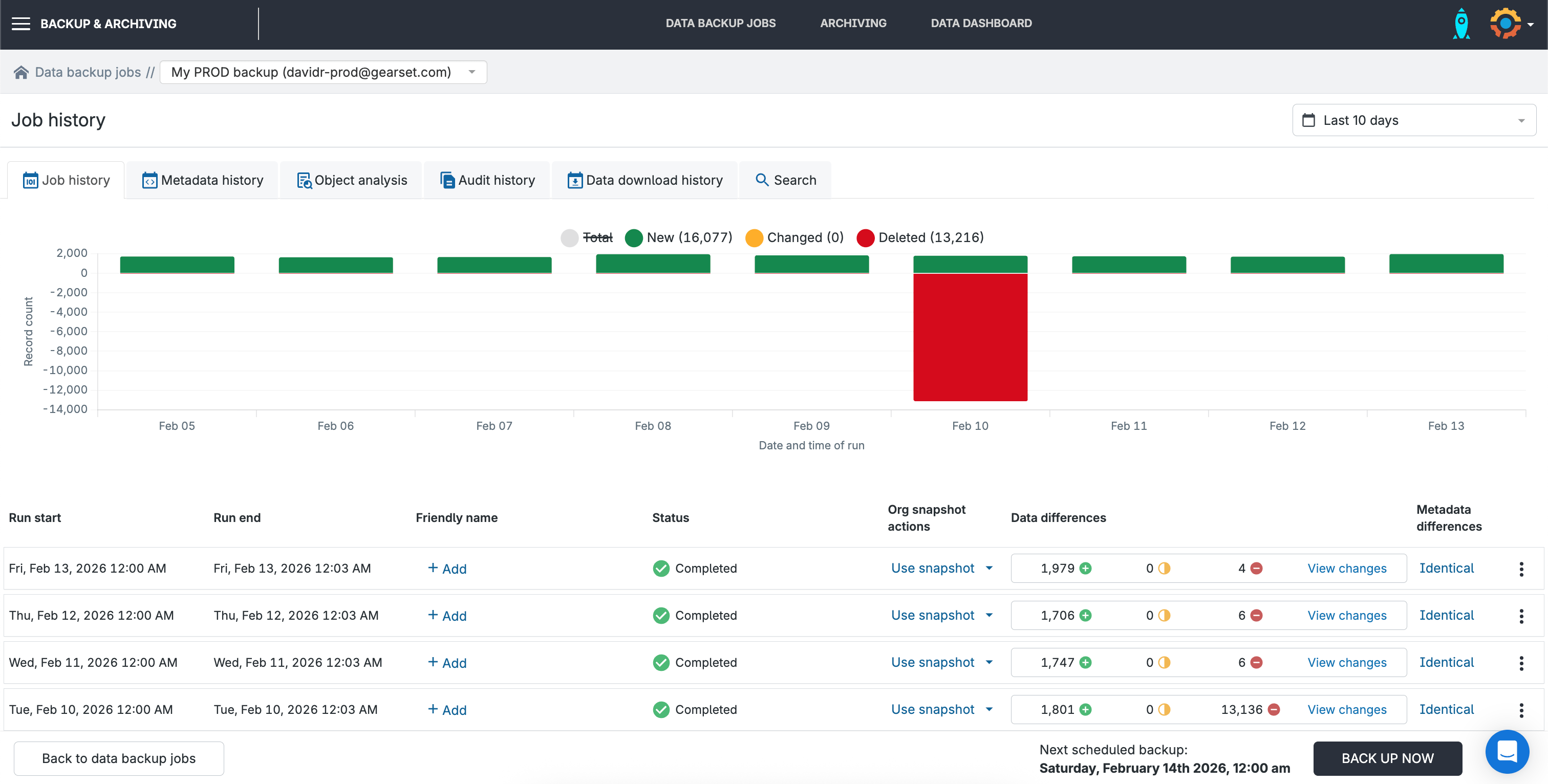
Change visualization and alerts
With Gearset, you can easily visualize how your org’s data has changed over the course of your backup history. This is especially helpful for tracking changes and spotting potential problems. Gearset also allows you to set up configurable smart alerts to notify you when unusual amounts of data have been changed or deleted. These alerts help you stay on top of any potential issues before they escalate, ensuring a proactive approach to data protection.
Security and compliance
Security is the top priority with Gearset’s backup solution. All backups are encrypted both in transit and at rest, so your data is fully protected at every stage. Gearset also offers customizable data retention policies to match your specific compliance requirements. You can select your data residency and control team member permissions with fine-tuned settings. Gearset also maintains full audit trails of deletions, meaning your organization is compliant with data protection regulations.
Flexible restoration for every scenario
Data incidents can vary widely, so having flexible restoration options is crucial for addressing any level of data loss. Gearset offers a range of recovery methods to meet these diverse needs, ensuring you can restore your Salesforce data quickly and accurately, no matter the situation.
When an individual record is permanently deleted from the Recycle Bin, Gearset allows you to search across all historical backups to find that specific record. You can then choose to restore a version from any point in time when the data was correct. Gearset handles the re-insertion of the record into your org and ensures that relationships (like related Contacts, Opportunities, or Cases) are automatically preserved, so your data remains intact without manual intervention.
Protect your Salesforce data with Gearset
Native Salesforce tools don’t provide comprehensive data protection, leaving gaps that could expose your organization to data loss.
Gearset’s Salesforce backup solution transforms data recovery from a manual, error-prone nightmare into a streamlined, automated process. With automated backups for both data and metadata, off-platform storage ensuring availability even during Salesforce outages, and intelligent restoration that keeps relationships intact, Gearset offers the enterprise-grade protection your Salesforce org needs.
Don’t wait for a data disaster to realize the Recycle Bin isn’t enough. Book a demo to see Gearset in action and understand how it can protect your Salesforce data.