
A data kit deployment can report success and still leave you with nothing running in the target org. That’s because Data 360 configuration doesn’t move between environments the way the rest of your metadata does. It travels inside a container called a data kit, and that container has rules about what it holds, where it’s allowed to land, and what has to happen once it arrives.
This post covers what a data kit is, why these deployments break more often than they should, and how to easily move one through a release pipeline with Gearset.
What is a data kit?
A data kit is a package for Salesforce Data 360 configuration (formerly known as Data Cloud).
A data kit holds the Data 360 components that define how your data gets in, how it’s structured, and what gets derived from it:
- Data streams and data stream bundles
- Data model objects (DMOs)
- Data lake objects (DLOs) and their mappings to DMOs
- Calculated insights
- Data transforms
- Search indexes
The data kit container exists because Data 360 configuration is heavily interdependent. A calculated insight references a DMO. That DMO depends on the DLO mapped to it, and the DLO gets its data from a stream. Deploy those pieces individually, in the wrong order, and each one fails on the dependency that hasn’t arrived yet. The kit gives Salesforce a single unit to install and a sequence to respect while installing it.
Salesforce offers two kinds of data kit. Standard kits package Data 360 solutions for distribution to customers, usually wrapped in a managed package. For moving configuration between your own environments, you want a DevOps kit — and it has to land in the same data space in the target org that it came from in the source. Get that wrong and the deployment fails in a way the error message won’t explain.
Salesforce DevOps in the age of AI: is your custom pipeline ready?
Ask the Cam Team
What makes data kit deployments difficult
Most failed data kit deployments happen because the kit doesn’t bring its contents with it. Retrieve a DataPackageKitDefinition and Salesforce will only give you the list of what the kit contains, without the components themselves. The data streams, DMOs, and calculated insights it references stay behind. Build a deployment package from that retrieval and you’ll ship an empty container.
Order matters too. A calculated insight can’t publish before the DMO it references exists in the target org. Most deployment routes handle the ordering for you, but a hand-crafted manifest puts it back on you.
Redeployment is more forgiving than you’d expect. Data kit deployment is an upsert, so pushing the same kit again updates what’s already there rather than duplicating it.
This is the part that catches people out: deploying a kit puts its components into the target org, but doesn’t make them usable. Salesforce needs a separate publish step before anything actually runs. Miss it and the deployment reports success while the data streams sit inert — the failure that looks like a pass.
Do this manually across dev, QA, UAT, and production for every release, with a different person handling each stage, and that’s four chances to miss the publish step every time.
Deploying data kits with Gearset
Gearset handles the retrieval gap, the dependency check, and the publish step as parts of one workflow. Tell Gearset which data kit you want to deploy and it builds the deployment package around it, dependencies included. Here’s the pipeline route:
1. Pick your data kit
Three things to sort before you start. Enable Data 360 in both source and target orgs, check your deployment user has the Data Cloud Admin permission set, and make sure the kit was created as a DevOps kit rather than a standard one.
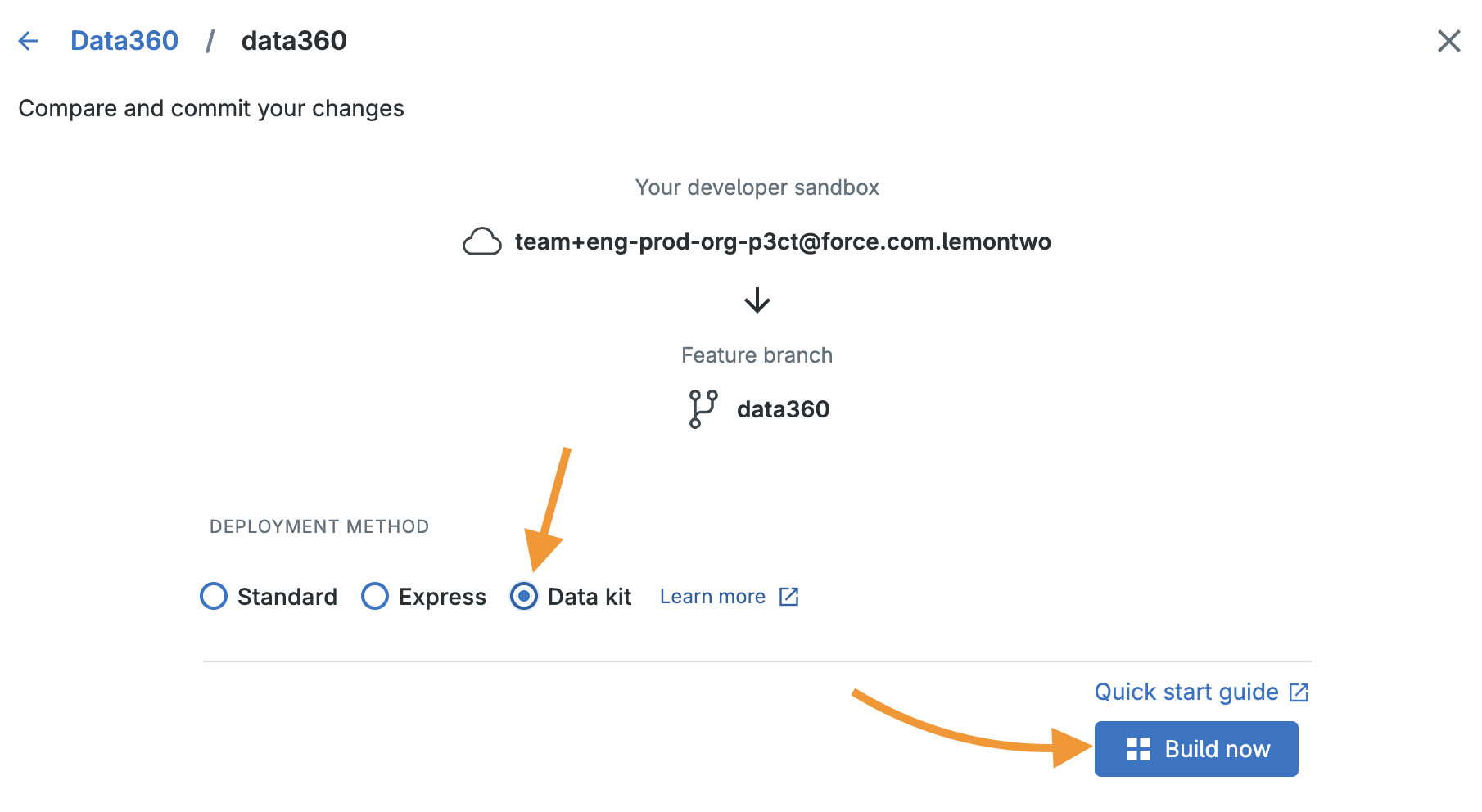
In your pipeline, click the sandbox where you built the kit and create a new feature branch. Add the branch name and the associated work item, then choose Data Kit as the deployment method and click Build now.
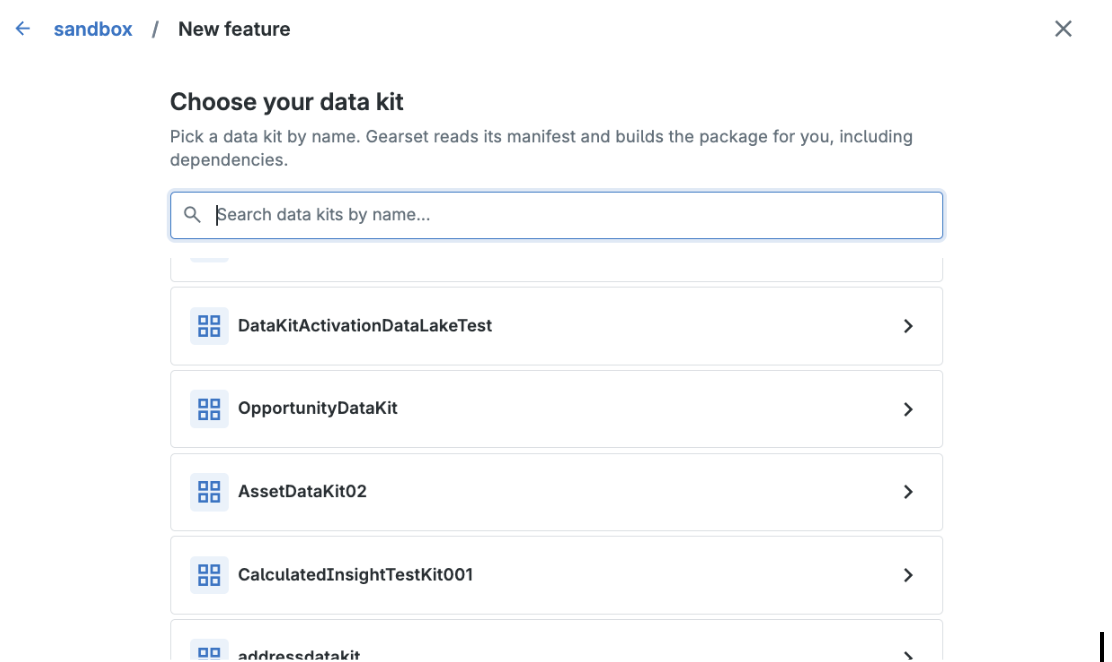
Gearset lists the DevOps data kits it can see in that org. Pick the one you need, and Gearset retrieves its components — the ones Salesforce leaves behind. Click + Add data kit to package, then Next.
2. Review the package Gearset built
The comparison opens with the kit’s components already selected, and Gearset keeps working in the background to trace dependencies and add those too. Let the list settle before you check it.
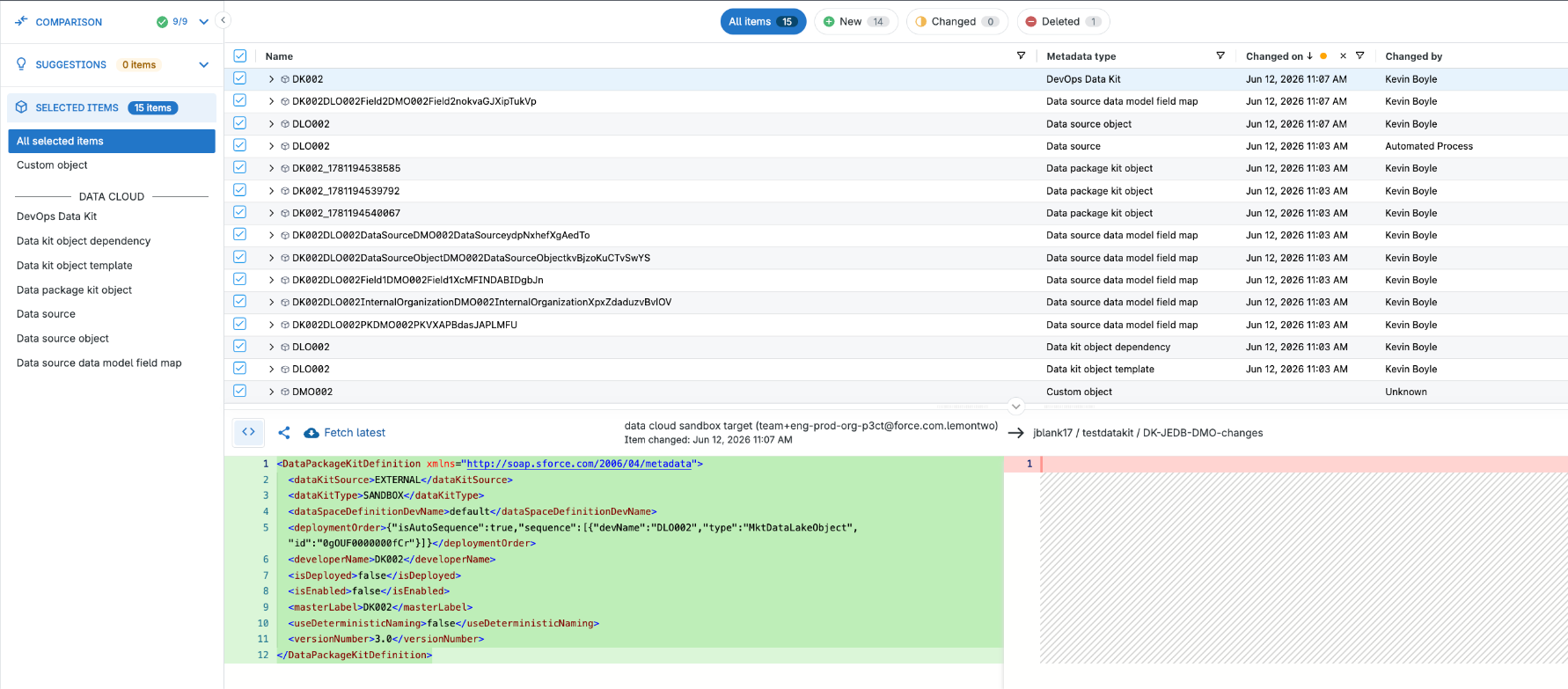
Review the selection and click Next. Anything still missing surfaces as a suggested fix by the problem analyzers, which is a better place to catch a gap than a failed deployment. Add what it suggests, then move to the pre-deployment summary.
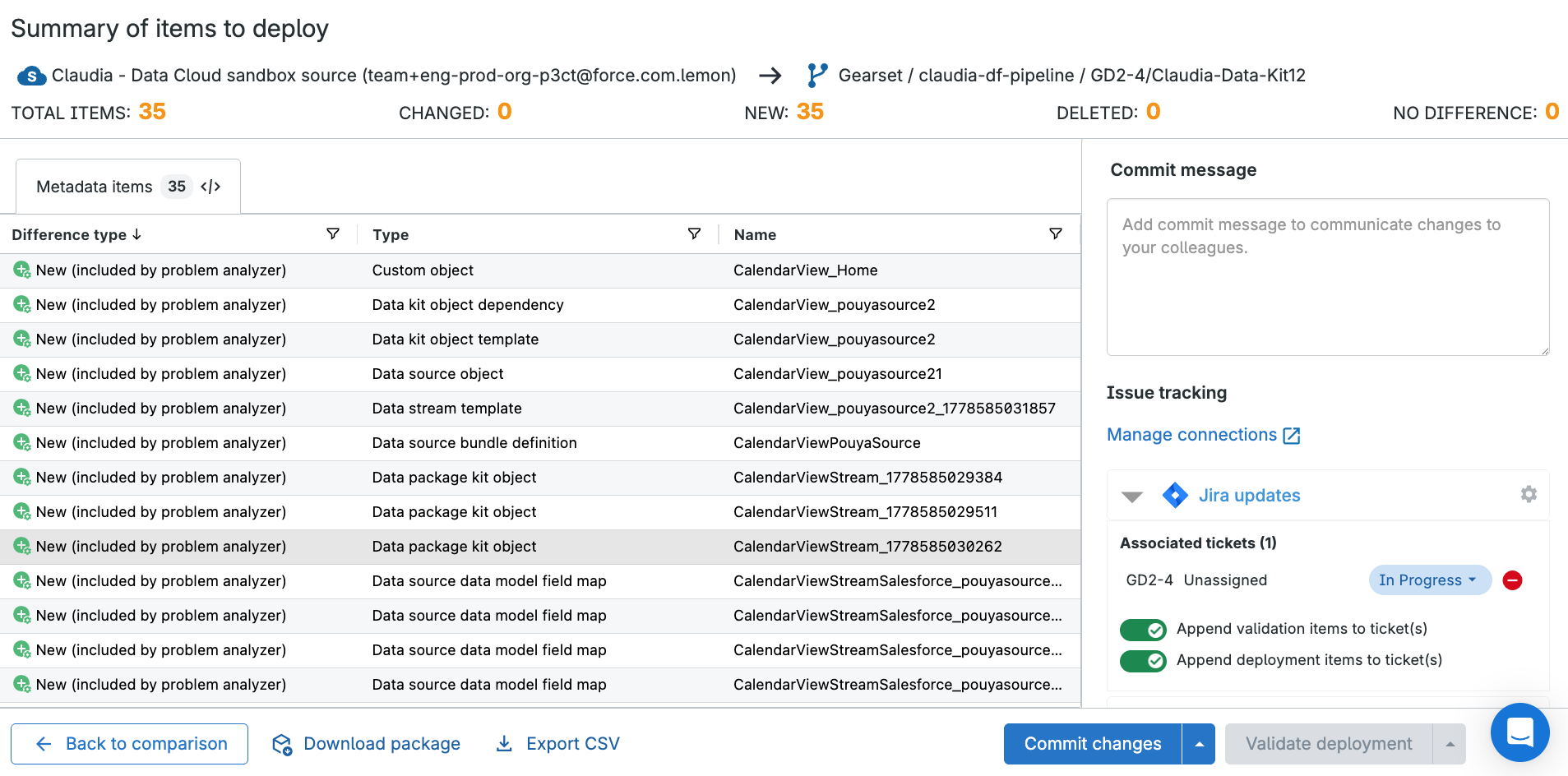
Name the commit, leave a note, and attach the Jira, Asana, or Azure work item if you use one. That becomes your audit trail. Then click Commit changes.
3. Add the activation step and open the pull request
Back in the main pipeline view, click Create pull request. Open the Deployment steps tab and add the post-deployment step that activates the data kit once the deployment completes. A pipeline commits to a Git branch before anything reaches an org, so the activation has to run as a deployment step rather than at commit time.
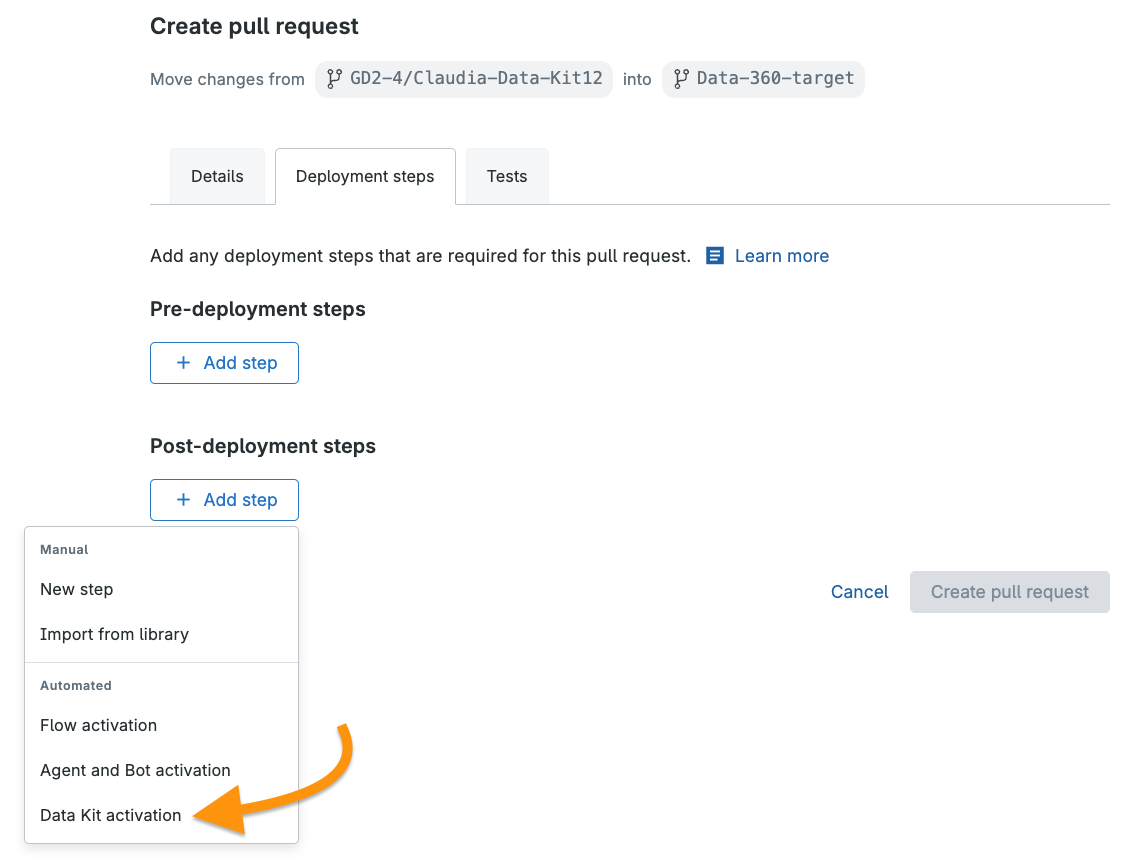
A note on activation. Salesforce’s term for making a deployed kit’s components usable is “publish”, or “Data Kit deploy”. Gearset labels it “activation” to match the other automatic post-deployment steps, alongside activating Flows and Agentforce agents. It’s a separate thing from Data 360 activation targets, which push segments out to destinations like Marketing Cloud.
Create the pull request and Gearset validates the data kit automatically. Once validation and your other checks pass, promote the change, and the activation runs on its own as soon as the deployment finishes. Activation can take a few minutes to finish in the target org.
The pull request against the next environment then opens with the post-deployment step already attached. The same kit moves through the rest of your pipeline the same way, and nobody has to remember the publish step at each stage.
Deploying org to org
Outside a pipeline, the same route works from Compare and Deploy. Choose Data Kit as the deployment method, click Build now, and pick your kit from the list exactly as above.
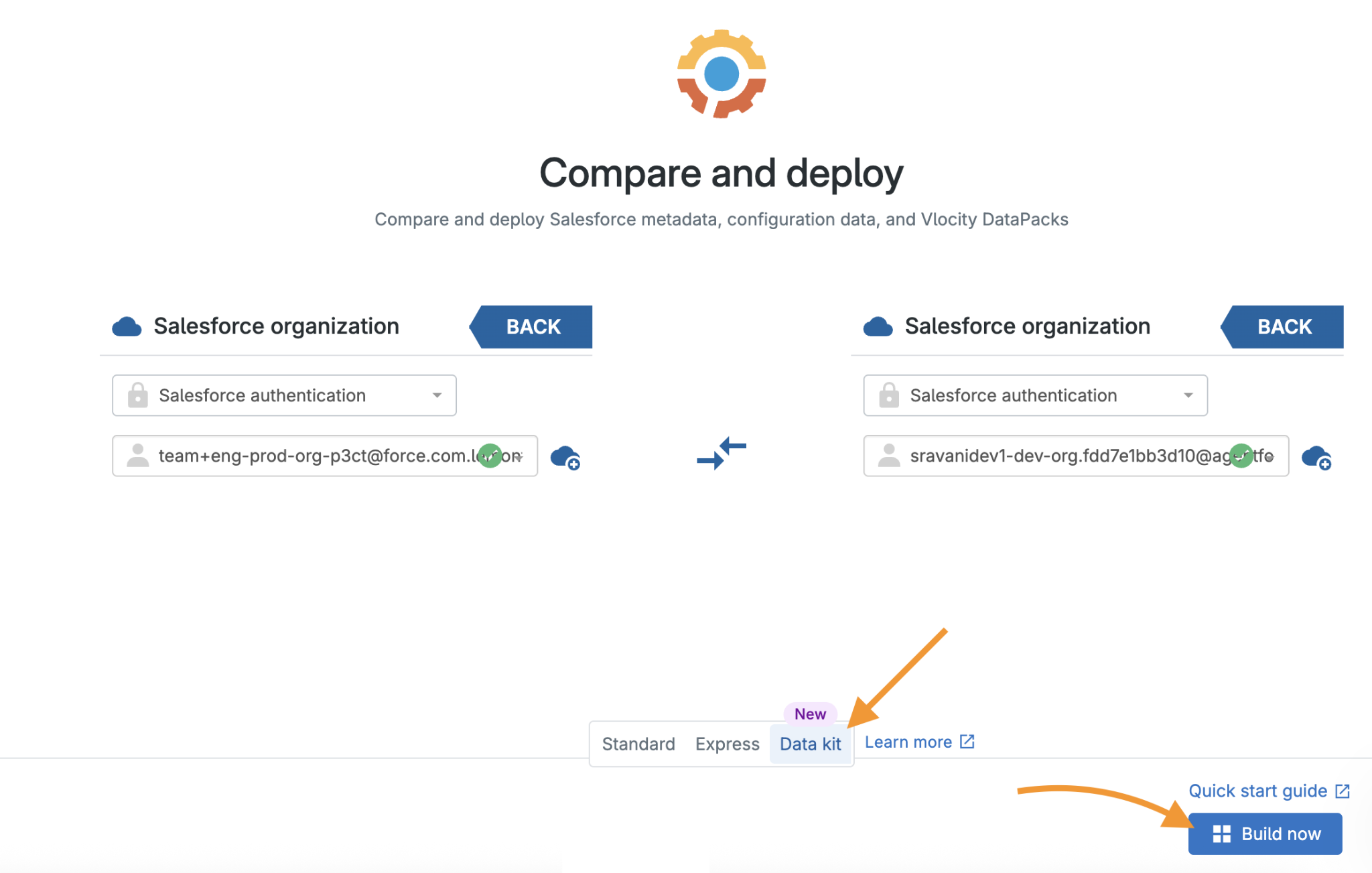
A second route exists: choose Standard if you want to select the metadata by hand. It means you will need to retrieve the DevOps Data Kit type alongside every Data 360 type inside it yourself.
On the summary of items to deploy, Activate Data Kits after deployment is switched on by default. If you toggle it off but then change your mind later, the Activate deployed Data Kits button in your deployment history picks it up.
When you don’t need a data kit
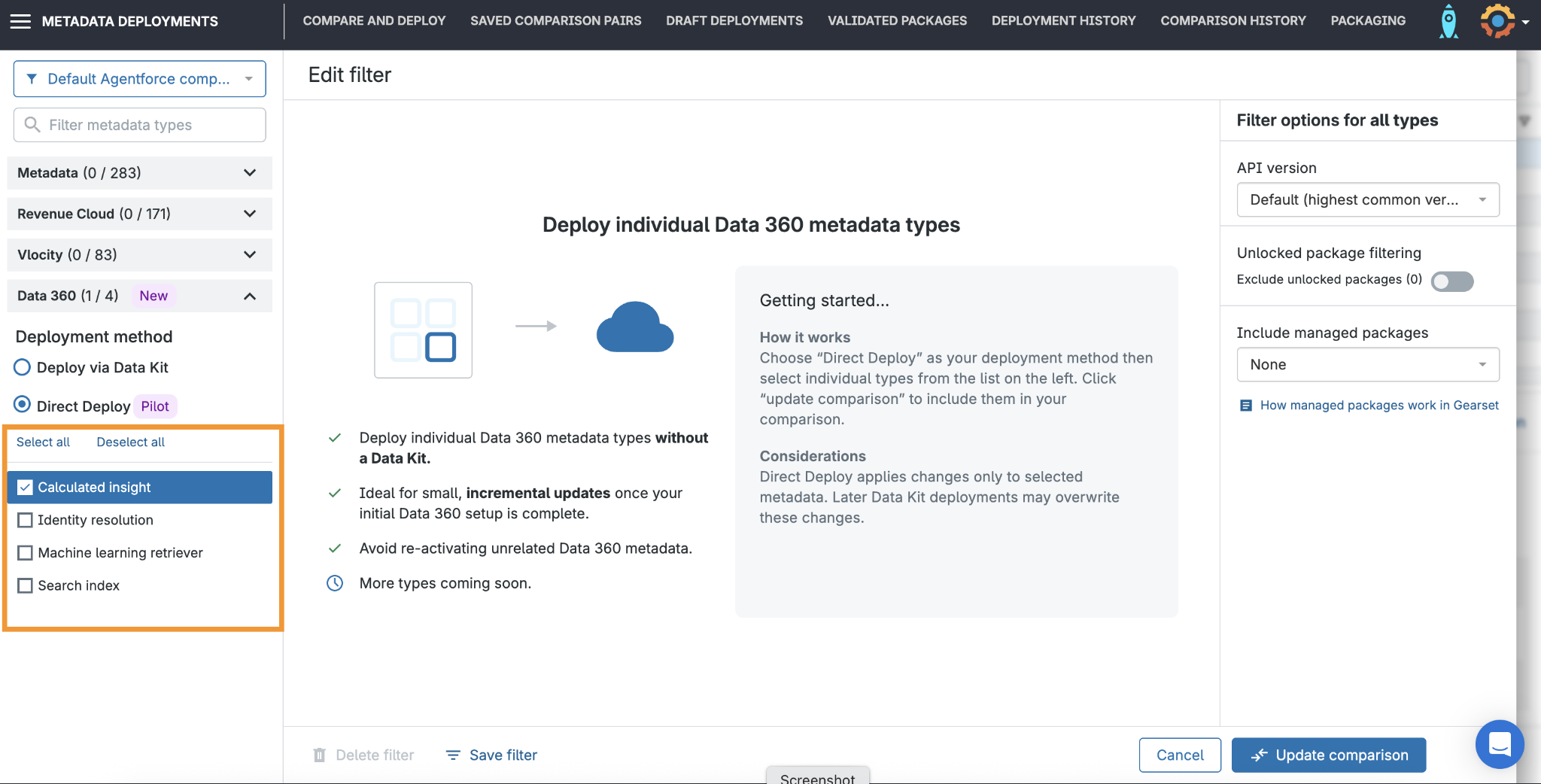
Not every Data 360 change needs packaging. Gearset’s Direct Deploy handles Calculated Insight, Identity Resolution, Machine Learning Retriever, and Search Index components individually. Select Direct Deploy in the Data 360 metadata filter, pick the components you want, and deploy them like any other metadata.
Direct Deploy isn’t supported in automated CI jobs yet, so the data kit route still handles anything moving through a pipeline. But for a one-off change to a calculated insight, building a kit around it is work you no longer have to do.
DevOps fundamentals for Data 360
Getting the deployment right is only the start. Data 360 configuration changes constantly, and when several people are editing streams, mappings, and insights at once, the risk stops being a failed deployment and becomes a change nobody reviewed. Version control, pipelines, and change monitoring apply to Data 360 the same way they apply to everything else in your org.
Get started with data kits
Don’t let packaging rules slow down your Data 360 work. Start a free 30-day trial to deploy your data kits, dependencies and all, or book a tailored demo to see how Gearset fits around your release process.