
Most Salesforce teams have a backlog of changes that nobody gets around to. As businesses grow and run more of their processes on Salesforce, the volume of change requests often outstrips the team’s capacity. Add the time needed to fix issues that end users report in production, and the time for non-urgent (but still important) work disappears.
Cam, the Gearset agent, gives your team that time back. In this post, we’ll walk through a first change with Cam from start to finish: handing over the work, answering Cam’s questions, approving the plan and reviewing the result. Then we’ll look at a second way in, starting from an error in production.
An introduction to Cam, your virtual teammate
Cam is a virtual teammate that works alongside you from within your Gearset pipeline. If you haven’t come across Cam before, here’s a quick overview:
- Automatically org-aware. Cam knows your org’s metadata and stays up to date automatically, so it builds against what’s actually in your org. It also follows your internal standards and practices, so changes fit how your team works.
- Practitioner skills built in. Cam comes with practitioner skills out of the box, so it works the way an experienced Salesforce admin or developer would, instead of blindly replicating suggestions in online documentation.
- Delivers deployable changes for review. Raising a pull request triggers validation against your org. If there are any validation errors, Cam fixes the changes before they reach your team, so nobody spends review time on changes that won’t deploy.
- Consistent guardrails for all changes. Because Cam operates within your DevOps pipeline, its work goes through the same automated testing and code reviews as the changes your team submits.
- Maintenance managed for you. Gearset keeps Cam’s Salesforce knowledge current through every release, so your team doesn’t have to.
Prerequisites for getting started with Cam
Teams get the most out of AI-assisted development when the release process around it is reliable and scalable. The State of Salesforce DevOps Report 2026 found that adoption of the DevOps lifecycle was the strongest predictor of trusted, effective AI use.
That’s why Cam works with Gearset Pipelines. To get started, you need:
- A Gearset pipeline connected to your version control repository.
- A developer org connected for Cam to build in.
Optionally, connect Jira or Azure DevOps through Gearset’s integrations so you can assign work to Cam straight from your backlog. Without that connection, you can describe the change to Cam yourself in natural language.
If you’re new to Gearset, we’ll help you set up your pipeline as part of getting started, so the foundations for scalable and secure AI-assisted development are in place from day one.
Walkthrough: validating VAT numbers on entry
Let’s look at how you’d use Cam to deliver a real change. Sales reps are entering invalid VAT numbers, which causes problems in invoicing and reporting. Finance wants each number checked on entry and any failures flagged to them, without blocking the reps.
Getting this right takes care. The new field needs the right access, finance needs a Flow they can edit, and the change needs a placeholder until the real validation check is ready. But it doesn’t need your expertise to build, which makes it a good candidate to hand to Cam.
1. Assign Cam a ticket
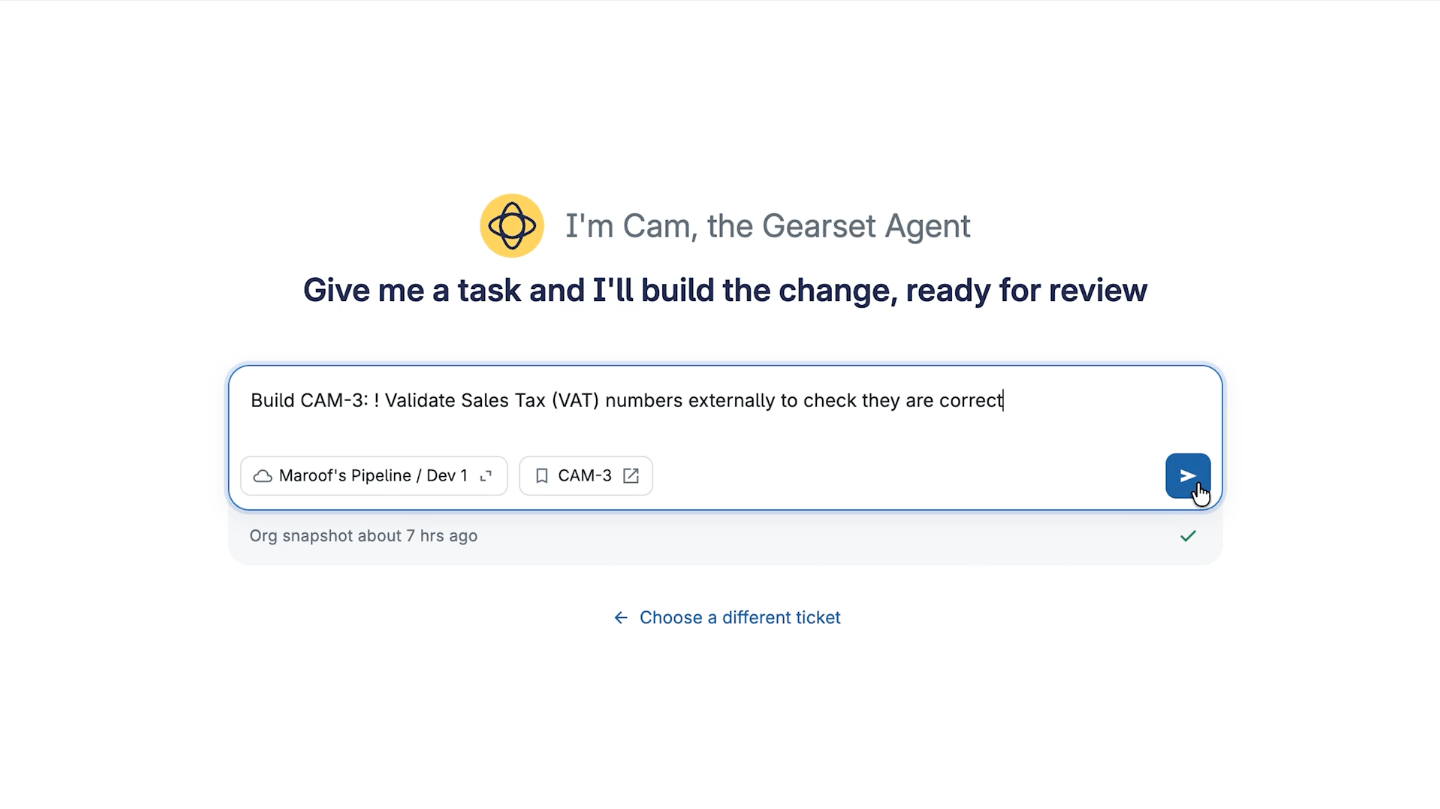
Open Cam in Gearset to see the work assigned to you and your team, pulled in directly from Jira or Azure DevOps. Select the ticket you want Cam to pick up. If the work isn’t in a ticket, you can describe it in your own words, the way you’d brief someone on your team.
2. Answer Cam’s questions
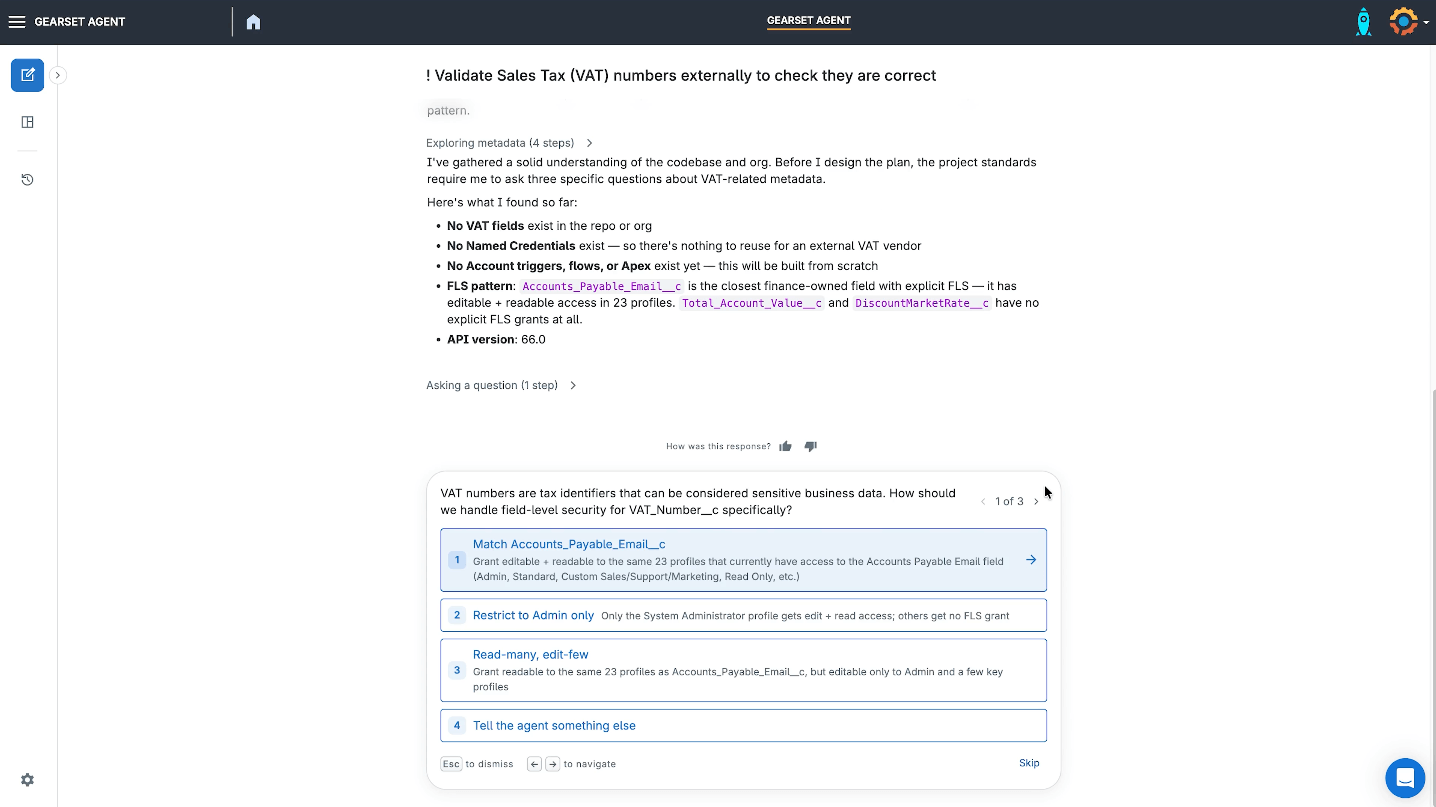
Before designing anything, Cam checks your repository and your live org for context. For the VAT ticket, it finds the related finance fields, such as the accounts payable email, and how access to them is set up across 23 profiles. Then it comes back with questions about anything the ticket leaves open.
Here, Cam asks three things:
- Access. VAT numbers are sensitive business data, so how should access to the new field work? Cam has already found the convention your team uses for similar fields, so you can tell it to match the accounts payable email field.
- Country. Different countries format VAT numbers differently, so should there be a VAT country field for the real check to use later? That’s the kind of gap that’s easy to miss until months down the line.
- Data protection. Does the field need protection beyond field-level security?
For each question, you can pick one of the answers Cam suggests or reply in your own words.
3. Review and approve the build plan
With your answers in, Cam sets out a plan of every step it will take. For the VAT ticket, that’s nine steps: the new fields on Account, the placeholder Apex and its tests, a Flow for finance, page layout updates and access across all 23 profiles to match your convention.
Check you’re happy with the approach. If you want to change anything, tell Cam and it will update the plan.
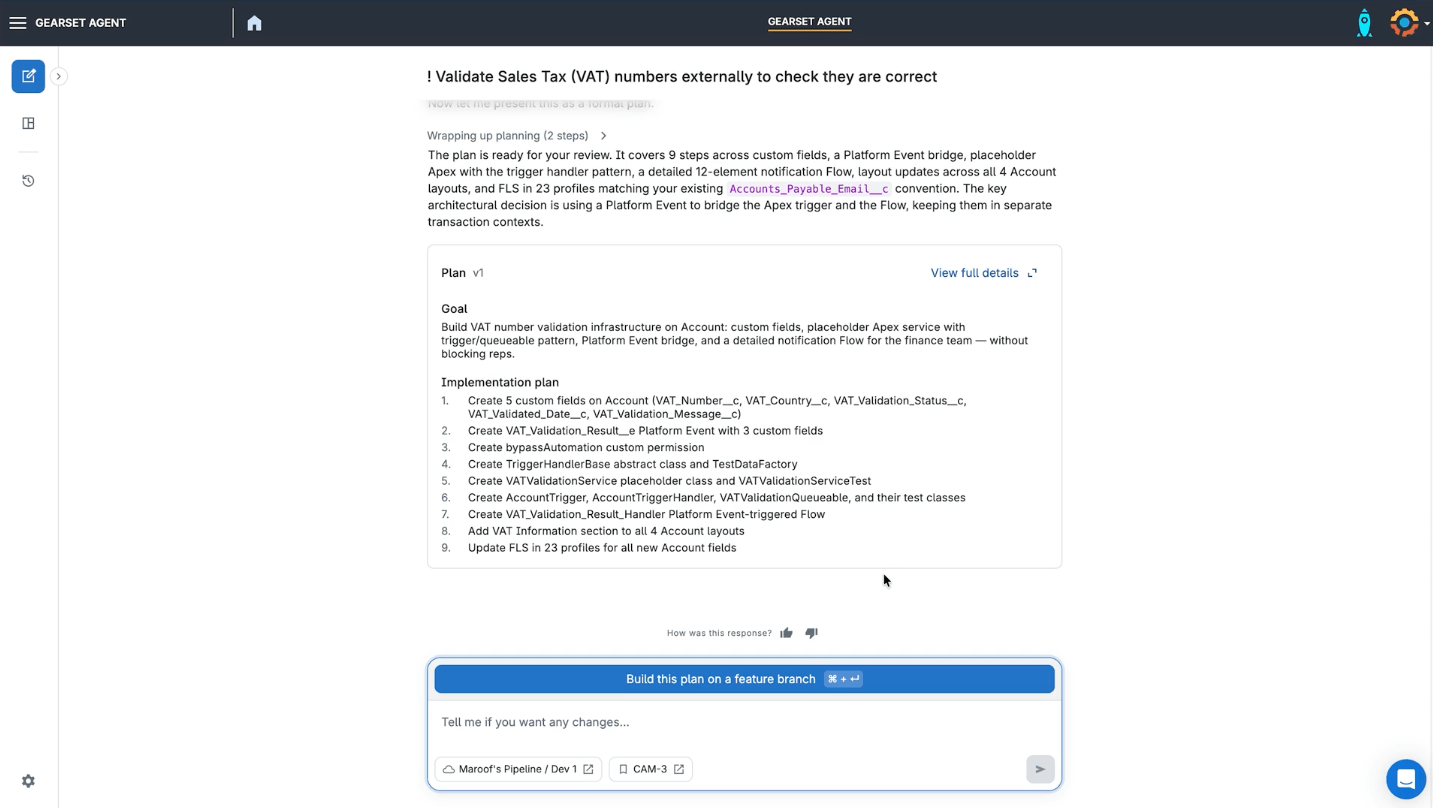
Nothing is built until you approve the plan. Once you press Build this plan on a feature branch, Cam gets to work.
4. Let Cam build, then review its work
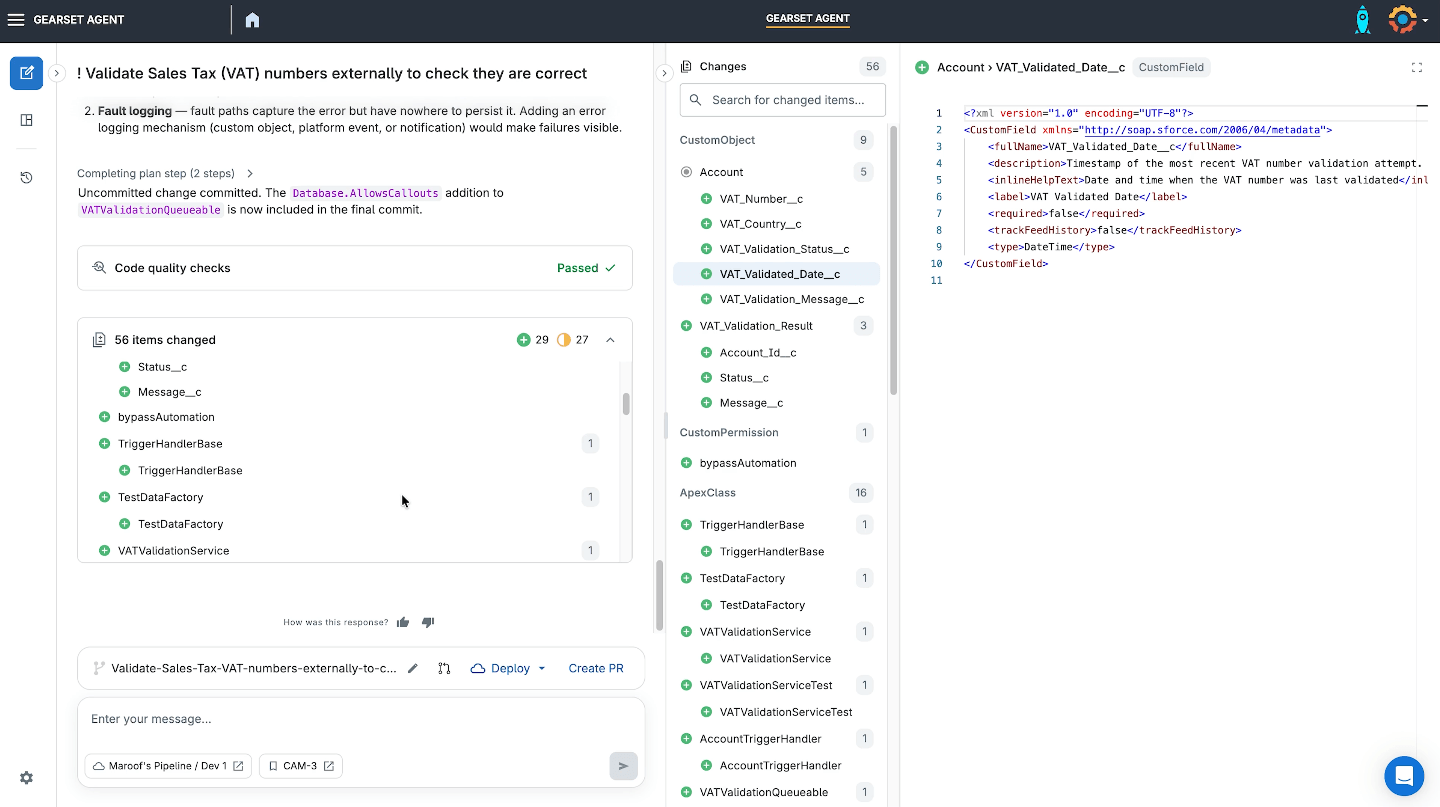
While Cam builds the change, you can get on with something else. When it’s done, you can see every step Cam took and exactly what changed, in the same comparison view you’d use for any deployment. For the VAT ticket, that’s the two new fields on Account, access matched to the other finance fields, the placeholder Apex ready for the real check and the Flow that routes failures to finance.
Cam also checks the change against your team’s coding standards for bugs, performance and security. These are the same standards that apply to your team’s own work.
5. Raise a pull request
When you’re happy with the change, you have two options. Deploy it to a sandbox to test it, or raise a pull request straight into your pipeline.
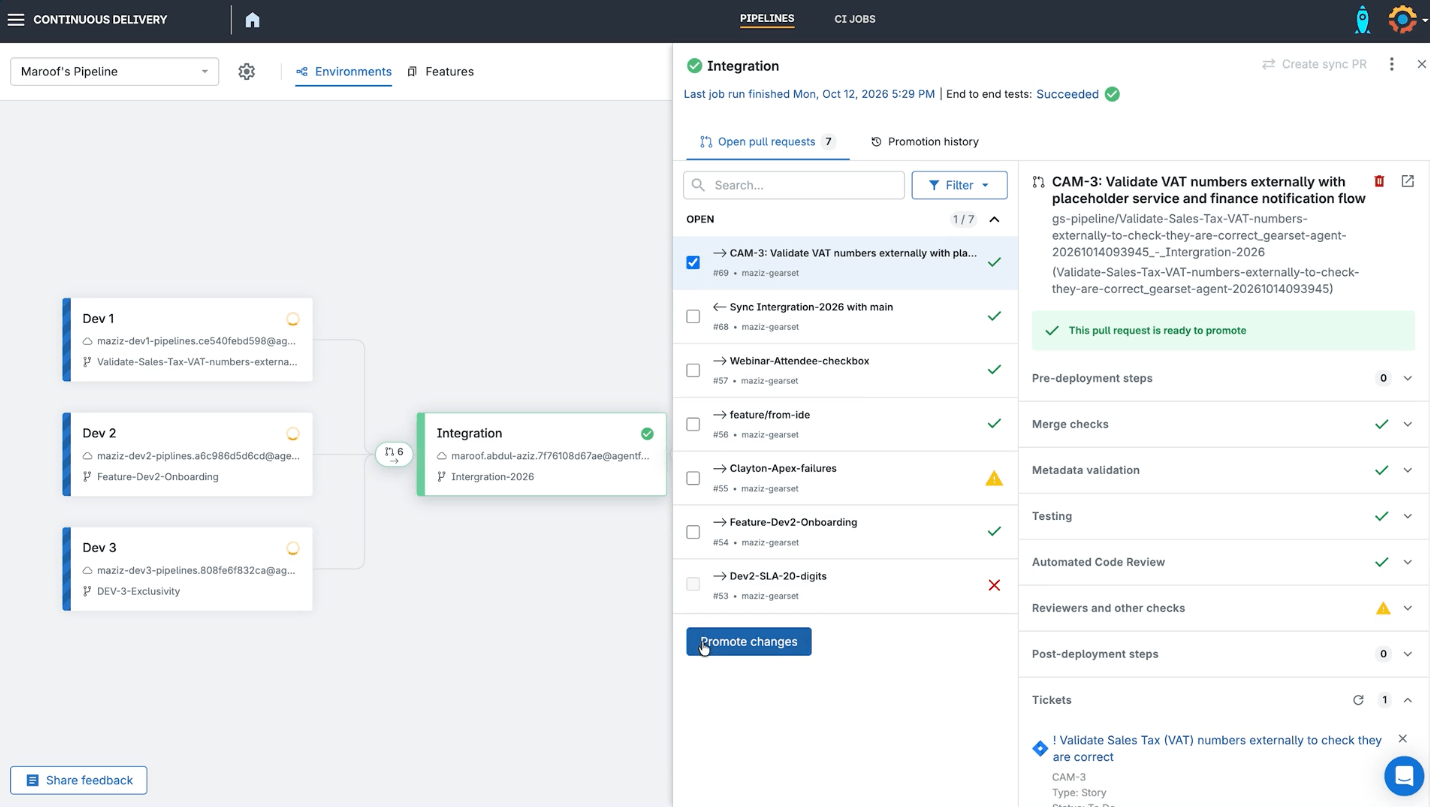
Raising the pull request triggers a validation run against your org. If validation fails, Cam reads the error and fixes the change, so the pull request you’re handed is one that will deploy. From there, it’s a normal change. It goes through the same approvals, tests and security checks as anything your team writes, ready to promote through your environments.
Fix production errors with Cam before more users hit them
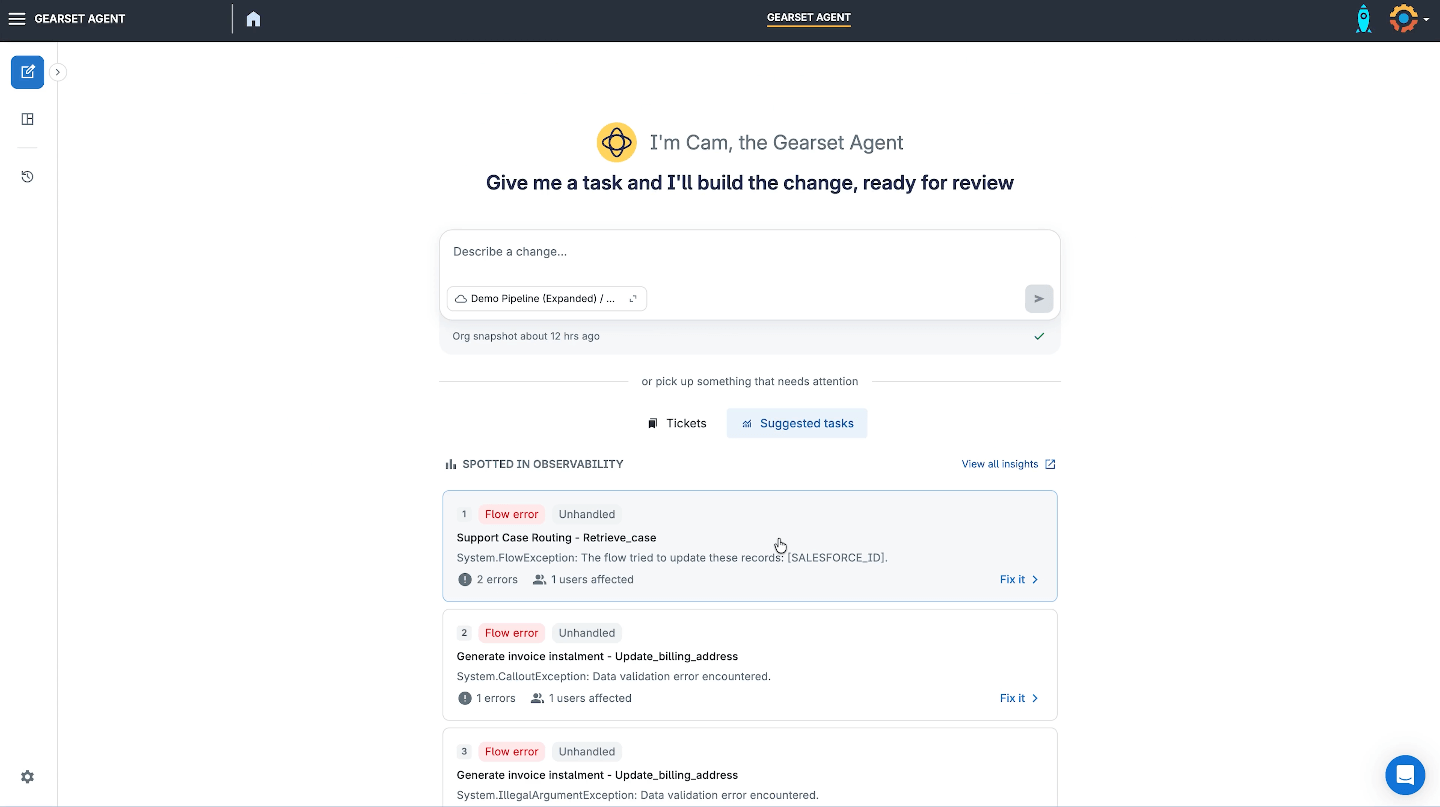
Not every change starts as a user story on your kanban board. Some start as an urgent fix for an error in production, and the Apex and Flow error emails Salesforce sends pile up fast, making it hard to tell which ones matter.
Gearset Observability surfaces the Flow and Apex errors happening in your production org, ranked by how many users are affected and how often each error occurs. You can hand any of those errors straight to Cam. From there, the steps match the walkthrough above: you answer its questions, approve the plan and review the change in your pipeline.
Get Cam to tackle your team’s backlog
If there’s a change you’ve been putting off, try it with Cam. Book a session with the Gearset team and we’ll help get you set up, so you can start delivering the changes you haven’t had time for.